Applicant tracking (ATS)
Track every hire in one place: the requests, the candidates, the interviews and the results.
Who it is for
- An HR or talent team, in-house or freelance, hiring for several roles at once.
- A hiring manager who wants to see who is in the pipeline for their team.
What is inside
- Candidates
- One row per applicant.
- Candidate (Text): The applicant's full name.
- Position (Link): The headcount request they applied for.
- Stage (Single select): Where they are: Applied, Screen, Interview, Offer, Hired or Rejected.
- Recruiter (Link): The person on Team who looks after them.
- Source (Single select): Where they came from, such as LinkedIn, TopCV or a referral.
- Applied (Date): When the application came in, to the minute.
- Experience (Text): Their experience, in a few words.
- Offer date (Date): When the offer went out.
- Offer (VND/month) (Number): The monthly salary offered.
- Start date (Date): Their first day.
- Email (Email): Their email address.
- Phone (Phone number): Their phone number.
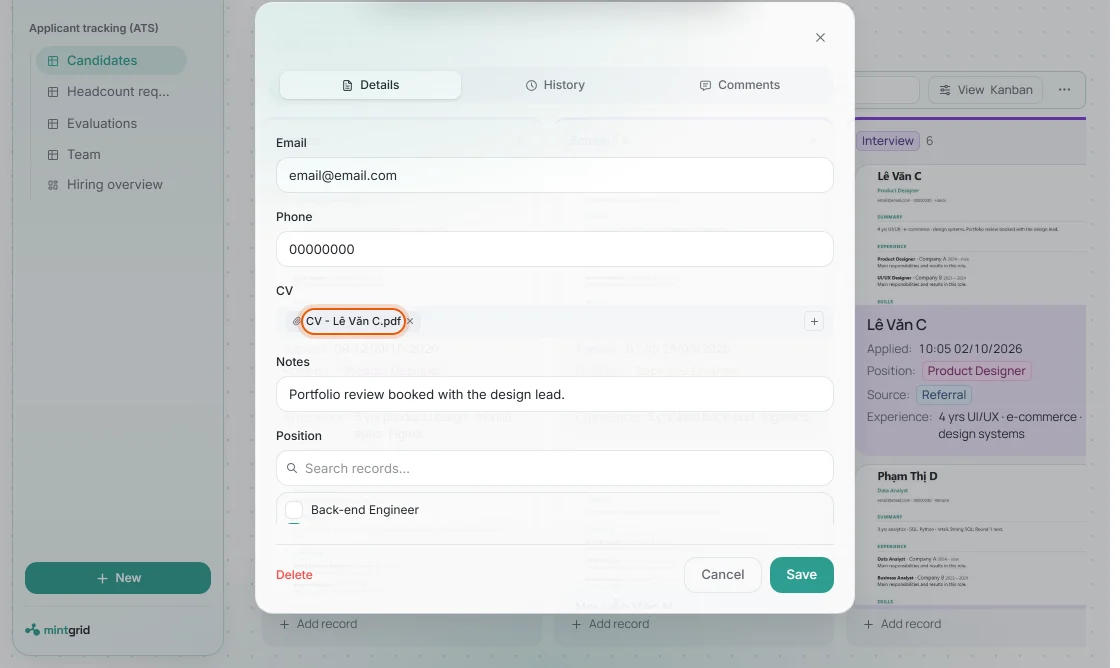
- CV (Attachment): The CV file. A PDF's first page shows on their card.
- Notes (Text): Anything else worth knowing.
- Days to hire (Formula): Days from applying to the start date, worked out.
- Department (Lookup): The role's department, read from the request.
- Interview score (Lookup): The average Overall score of their evaluations.
- Headcount requests
- One row per role a team asks to hire for.
- Position (Text): The role's title.
- Department (Single select): The team the role sits in.
- Location (Single select): Ho Chi Minh City, Hanoi, Singapore or Remote.
- Openings (Number): How many people are needed.
- Urgency (Single select): Urgent, Priority, Normal or Planning.
- Status (Single select): Pending, Head approved, BOD approved, Hiring, On hold, Filled or Rejected.
- Hiring manager (Link): Who the new person will report to.
- Recruiter (Link): Who runs the search.
- Approved by (Link): Who signed the request off.
- Requested on (Date): When the request was raised.
- Job description (Attachment): The JD file, shown on the card.
- Expected start (Formula): When the seat should be filled: 20 to 60 days after the request, by urgency.
- CVs (Lookup): How many candidates applied.
- Interviewing, Offer out, Hired (Lookup): How many candidates are at each of those stages.
- Evaluations
- One row per interview.
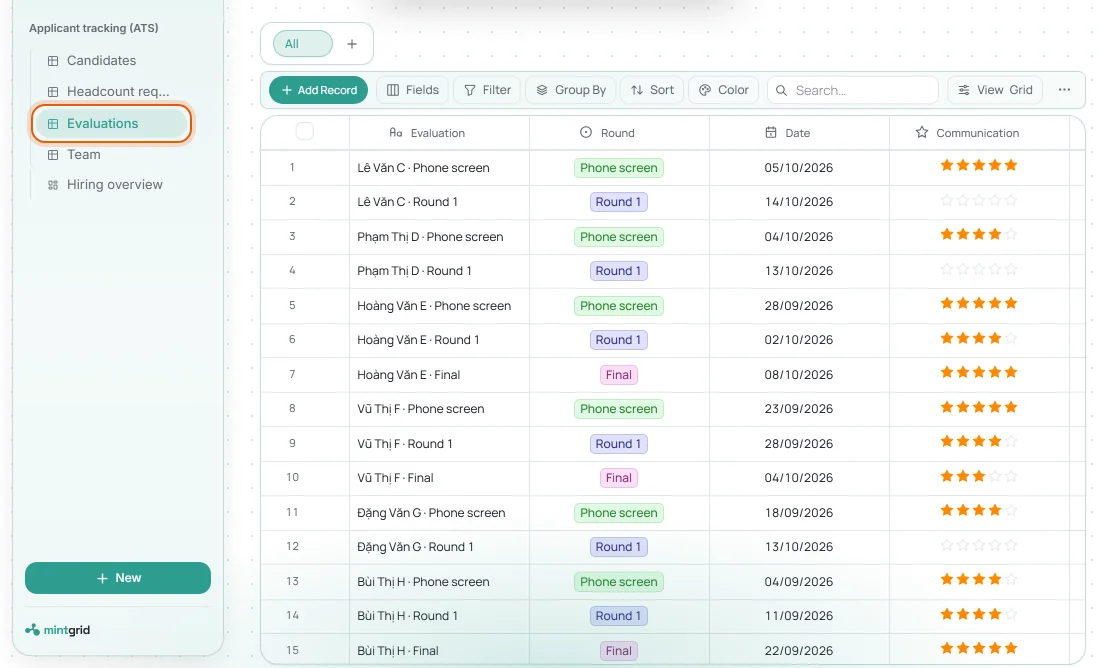
- Evaluation (Text): A short title for the interview.
- Candidate (Link): Who was interviewed.
- Round (Single select): Phone screen, Round 1, Round 2 or Final.
- Date (Date): When the interview took place.
- Interviewer (Link): Who ran it.
- Communication, Attitude, Culture fit (Rating): Scores out of five stars.
- Overall (Rating): The overall score. The candidate's Interview score averages it.
- Strengths, Weaknesses (Text): What stood out, for and against.
- Proposed level (Single select): The level to hire at, IC1 to IC7 or M3 to M7.
- Decision (Single select): Next round, Offer or Reject.
- Team
- One row per person in the hiring process.
- Name (Text): Their name.
- Title (Text): Their job title.
- Department (Single select): The team they belong to.
- Hiring role (Single select): Recruiter, Hiring manager or Approver.
- Email (Email): Their email address.
How it opens
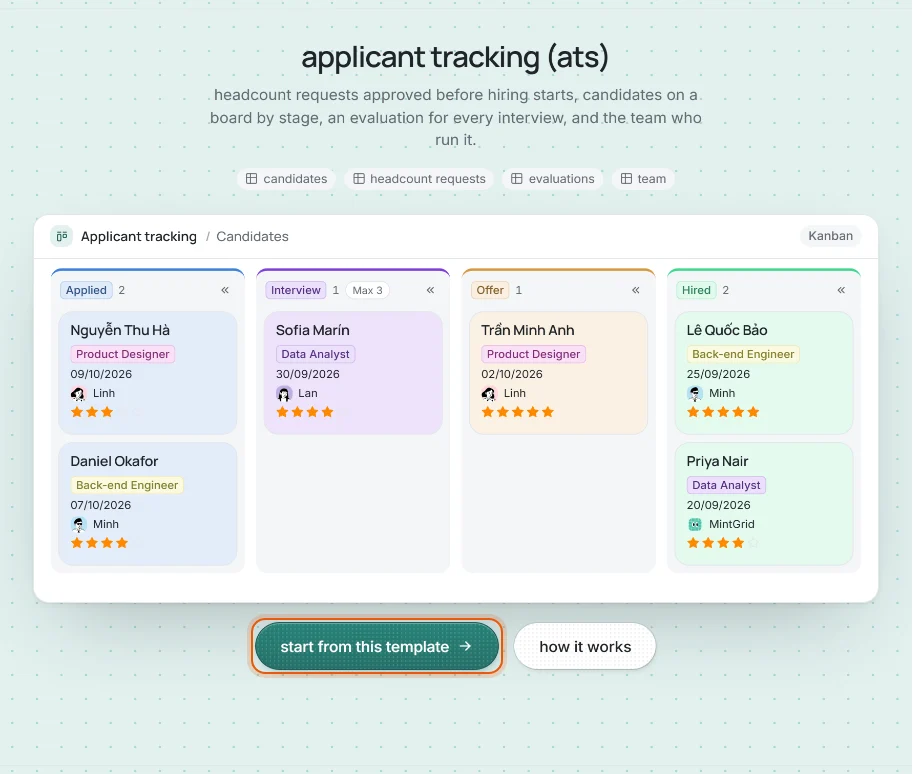
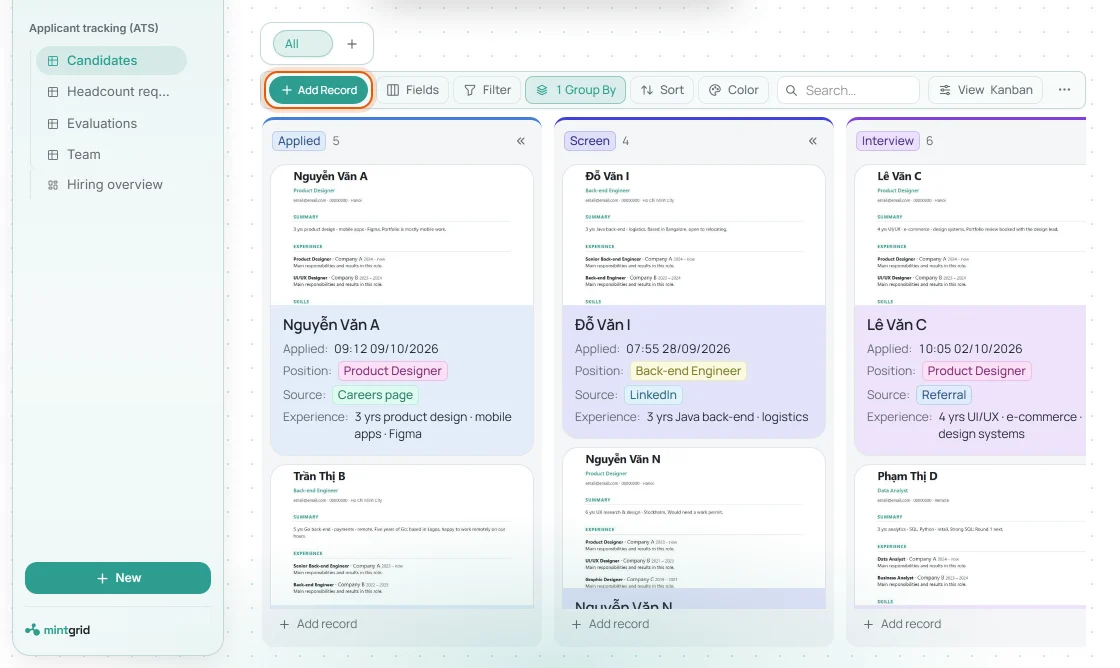
- Candidates open as a board by stage, each card under the first page of the CV.
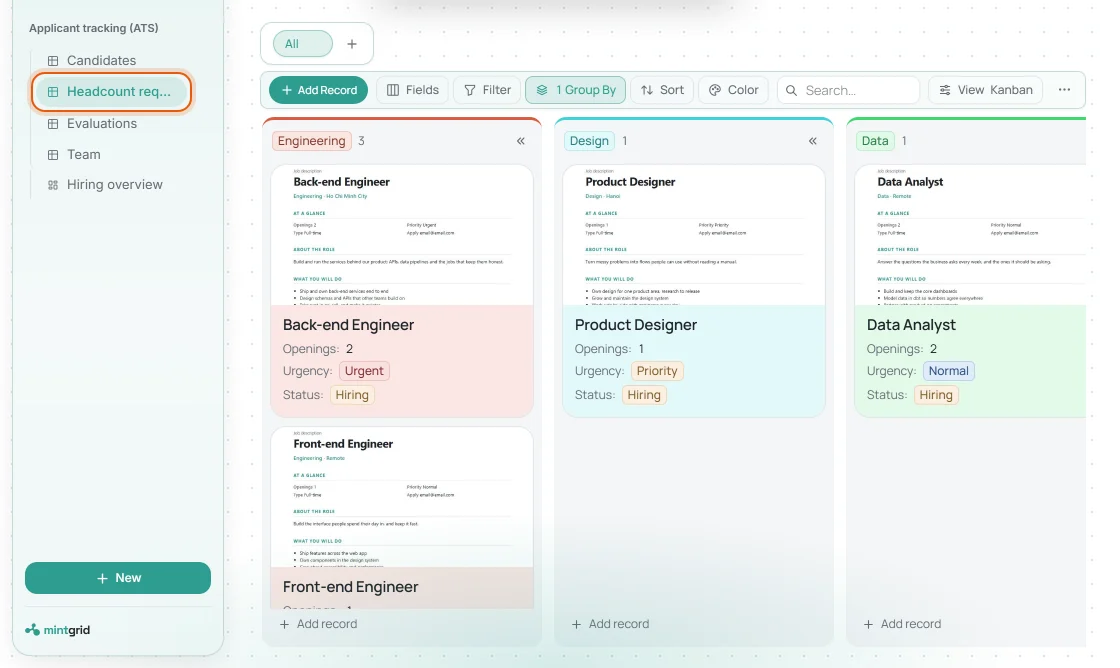
- Headcount requests open as a board by department, under the job description.
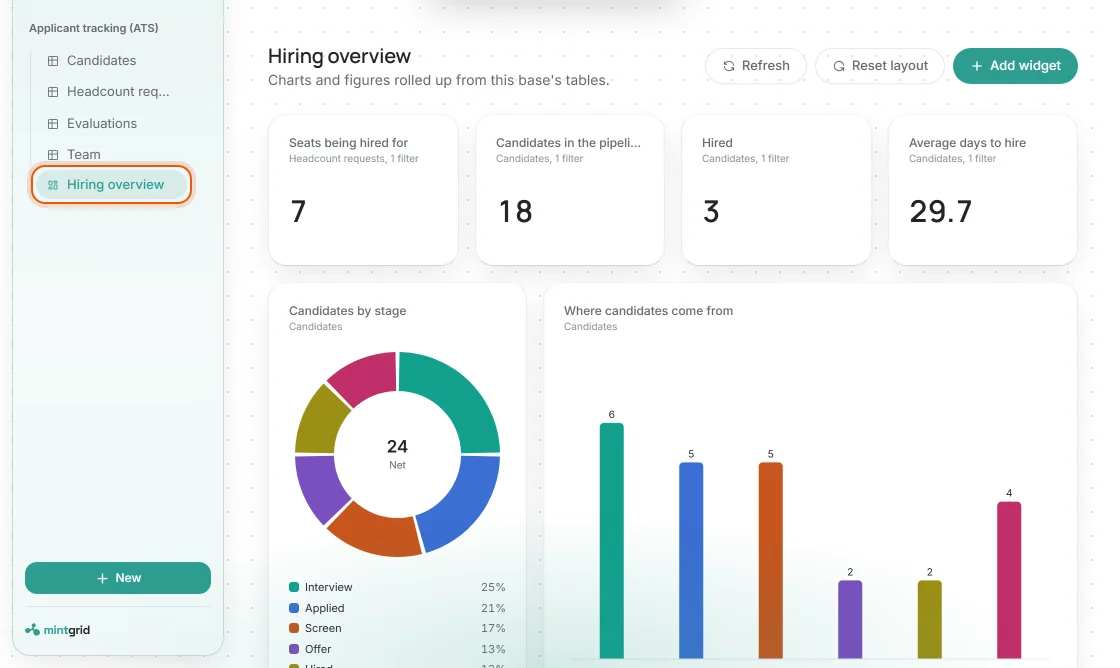
- A Hiring overview dashboard: seats being hired for, pipeline, hires, average days to hire, sources and decisions.
How to start
- Press start from this template, here or on the template's card in the gallery. If you are not signed in yet, you sign in first and come straight back.
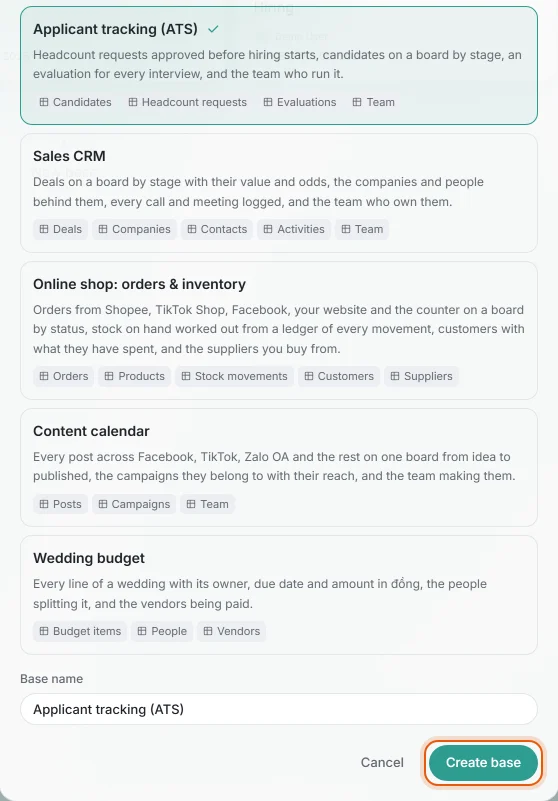
- The new base dialog opens with Applicant tracking (ATS) ticked. Change the Base name if you like and press Create base: the four tables, their links, sample rows and the dashboard are built in a few seconds.
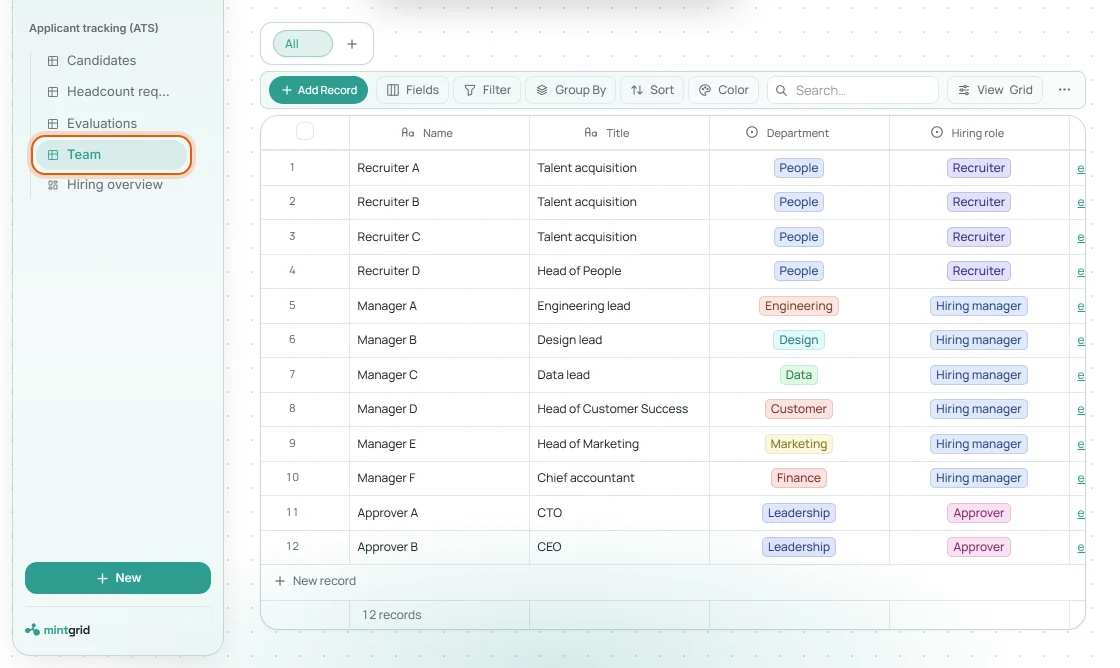
- Open Team and replace Recruiter A, Manager A and Approver A with your own recruiters, hiring managers and approvers. The other tables pick people from here.
- Open Headcount requests: one card per role, on a board by department under its job description. Raise a request with Add Record and move its Status from Pending through Head approved and BOD approved to Hiring.
- Open Candidates: a board by stage, from Applied to Hired, each card under the first page of the CV. Add an applicant with Add Record, pick their Position and attach the CV, then drag the card on as they move.
- Click a card to open the candidate. Every field can be changed there, and the file under CV opens the whole CV in a new tab.
- After every interview, add a row to Evaluations: the candidate, round, interviewer, star scores, strengths, weaknesses and decision. The candidate's Interview score and the request's counts update themselves.
- Open Hiring overview to see seats being hired for, candidates in the pipeline, hires, average days to hire, where candidates come from and how interviews were decided.
Questions
Can I attach CVs?
Yes. The CV column holds files, and a PDF's first page can show on the candidate's card.
Does it handle approvals?
A request's Status walks from Pending to Head approved and BOD approved before Hiring. Automatic approval messages are not built in yet.
How is time to hire measured?
In calendar days from the application to the start date, for every candidate who has one.
Is the ATS template free?
Yes. Making a base from a template is free, and every field and stage can be changed.